Showing posts with label terminal and its usage. Show all posts

Friday, 25 November 2011

Splitting.Combining.At your hand.

Hey you my linux companion.Today i want to share something that will helping you how to combining files using terminal.

First of all you must install lxsplit
"sudo apt-get install lxsplit"

not a huge program.Around 10Kb i guess.How to use it?
Here.lxsplit got only two argument.


                      -s-------->splitting file
                      -j--------->Join the file

the command is

"lxsplit -s [filename] [new size]"---------->for splitting
"lxsplit -j [filename.001]"--------------------->for joining

as usual.here my screenshot :)

*actually this working like hjsplit but since you are using terminal.ITS COOL BEB*hahahahahahahahahaha!!!!!

Monday, 21 November 2011

Sudo????

what the heck of "sudo" actually is?yeahh.sudo is stand for Super User DO.we usually add sudo before the command that need root privilege.As an example if you want to install something via terminal.You can't simply type "apt-get install ..".you need to add "sudo apt-get" on it.This is applied on ubuntu and several other linux that based on debian.If you are using centos,the user is root already.

For ubuntu,there are several way to enter the terminal as the root.

sudo su----->this will let you to be root and directed to root/home/user directory
sudo -i----->this will let you to be root at root directory
sudo -s----->same as -i

Changing File Permission using Terminal.

This entry will show you how to change the file permission using terminal.
First of all you need to run "ls -l" to see the file attribute.
notice that the first lining of the list.
drwxr-xr-x 2 soap soap 4096 2011-11-21 20:01 Dictionary
-rw-r--r--     1 soap soap       0 2011-11-21 20:00 toor

actually the result is divided by 3 part.But we will focused on drwxr-xr-x first.
d------>this mean that the item is directory
rwx----->this indicate for read and write permission.
notice that the sequence.

drwxr-xr-x is actually (type)(root)(user)(other)
the root got full permission thus it marked as "rwx" while user got read and execute permission and marked as "r-x".Other user got same permission as the user and marked as "r-x".If you combine all of them and then drwxr-xr-x is formed.Actually r,w and x each of them carry their own value.
r=4
w=2
x=1
lets consider this table.
see that.The trick here is very simple.consider the root got all permission,user got read and execute permission while other got read permission.Now root have the value as 7,user got 5 and other got 4.
how to change it?we simply type this command.

"chmod  [root value][user value][other value]  [file name]"
as an example regard to the table is "chmod 754 [file name]".since the first ls running,it will show drwxr-xr-x,but when you change the mode and you run ls again,it will show as "drwxr-xr--".Now the permission for the file is changed.Here i show some example.


                                          ----click to enlarge-----
see.now the permission was changed.Try this and you will feel like you are now controlling your system :)


                                    ---p/s=sorry for my bad english.any ambiguous you can drop at comment.Thanks----


 if you want to see all sorts of bash command line for linux,click here.

Run the process,see it,and kill it.

This entry will help you how to run the process,see the running process and even to kill it using terminal.For refreshing,terminal is the brain of the linux operating system.All the process controlled by yourself.This is one of the special of the terminal.Lets proceed to the code.


--------Remember.This command is very dangerous.Beware while using it else it may harm your machine-----------


1.run the process.

                 Simply type the program name if you want to run it.Example, xclock.This command will run xclock which is an ancient clock.(hehe)


2.List the running process.


       for listing the process run,simply type "ps".If you want to list all,simply type "ps -aux".For listing specified process,simply run "ps -aux |grep (program name)"
.(see the picture).


3.killing process.

     This is the most dangerous one if you mis-kill the process.Remember.never kill the process that running with root privilege.It may make your system down.So beware about to using it.Lets proceed to the command.

simply type "kill -9 [4 digits number that represent as the process]"-see the picture.

If you are having trouble with some apps is not responding,you are advised to use this technique.
1.press ctrl+alt+f2
2.log in using your user name and password
3.run "ps -aux |grep (damn apps name)"
4.confirm the process number
5.run "kill -9 [damned number]
6.press ctrl+alt+f7 for exit the shell and back to gui.

        I hope this entry will help you for those who are new in linux.Thanks for reading.:)

Terminal simple command and its usage

This entry will guide you some simple activity using terminal.


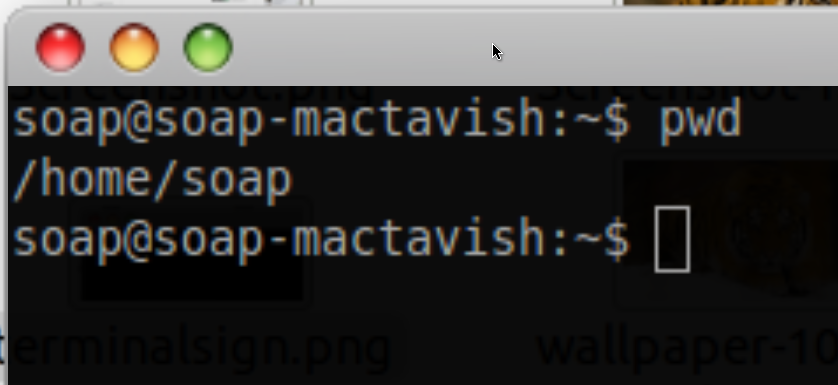
you see '~' sign there,it means that the terminal now is on the home directory.To check where your terminal direct to,simply type 'pwd' on the the terminal.


okay.now i will list all about the command for file managing.
cd ->used to change the direction.example "cd ~/Pictures/".Now terminal will be directed on the picture folder.
ls->used to list file on particular directory.
-l ->addition for long version.example "ls -l" and it will show all the file and its detail in the particular directory.
mkdir ->used to make folder.simply type "mkdir (folder name)".For creating on which directory you want,make sure the terminal is directed first(cd).
touch ->used to create empty document. type "touch (document name).(format you want).i prefer .txt because it can be edit back using gedit later on.
rm ->is used to remove file.simply type "rm (file name)".
cp->used to copy file.since "cp" can be used with much way,simply type "cp --help" to see all possibilities.in simple way.you can try like this."cp ~/(directory)/(your file)  ~/(directory)/(your destination)/
mv->used to move file.same way with "cp"
ln->used to create shortcut.ln --help to see how this command works.


         okay. I think thats all for file managing process via terminal. Next entry i will share to all of you how to run,see, and kill the process using terminal. see ya! :) 

------addition------
by pressing double tab (tab,tab) on the terminal,it will show you all the possibilities command.try it.:)


Terminal

know how terminal looks like?well check this out.
                                                                  -click to enlarge-
haaa.the one that is looks like cmd.That is terminal.I would acronym it as the brain of the linux operating system including Mac osx.What is special about this thing?well if you all know how to use it,it will be bloody fun i bet you.
        How to use it?I will post on next entry.This terminal carry so much function on the linux operating system.I will teach you how to create file using it,kill proses,running process and etc.Stay tuned and you will know what is the function of this linux-brain.